How to Use illTrove
Here's a quick guide to help you get started with using illTrove!!
Step 1: Generating Random Words
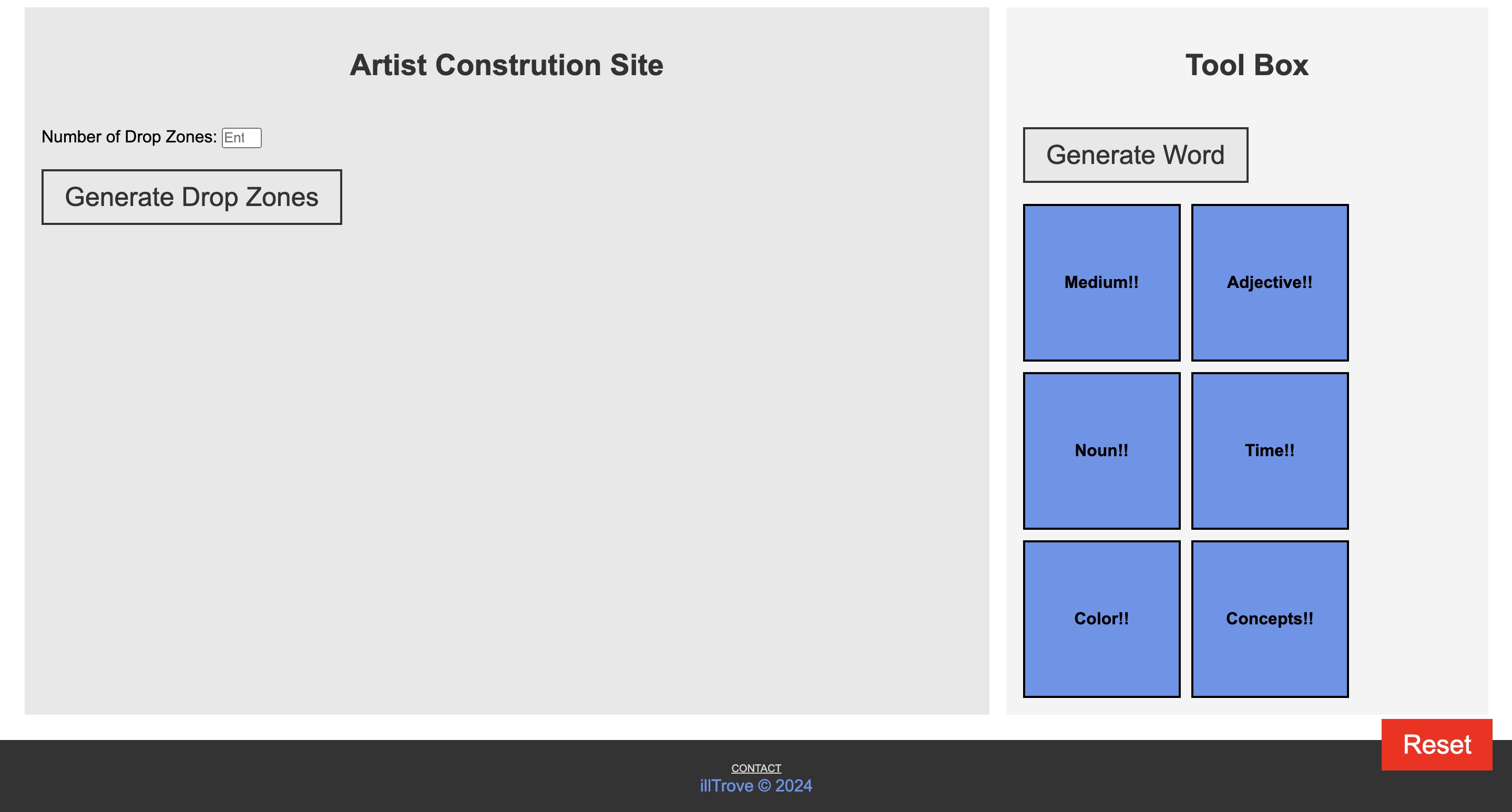
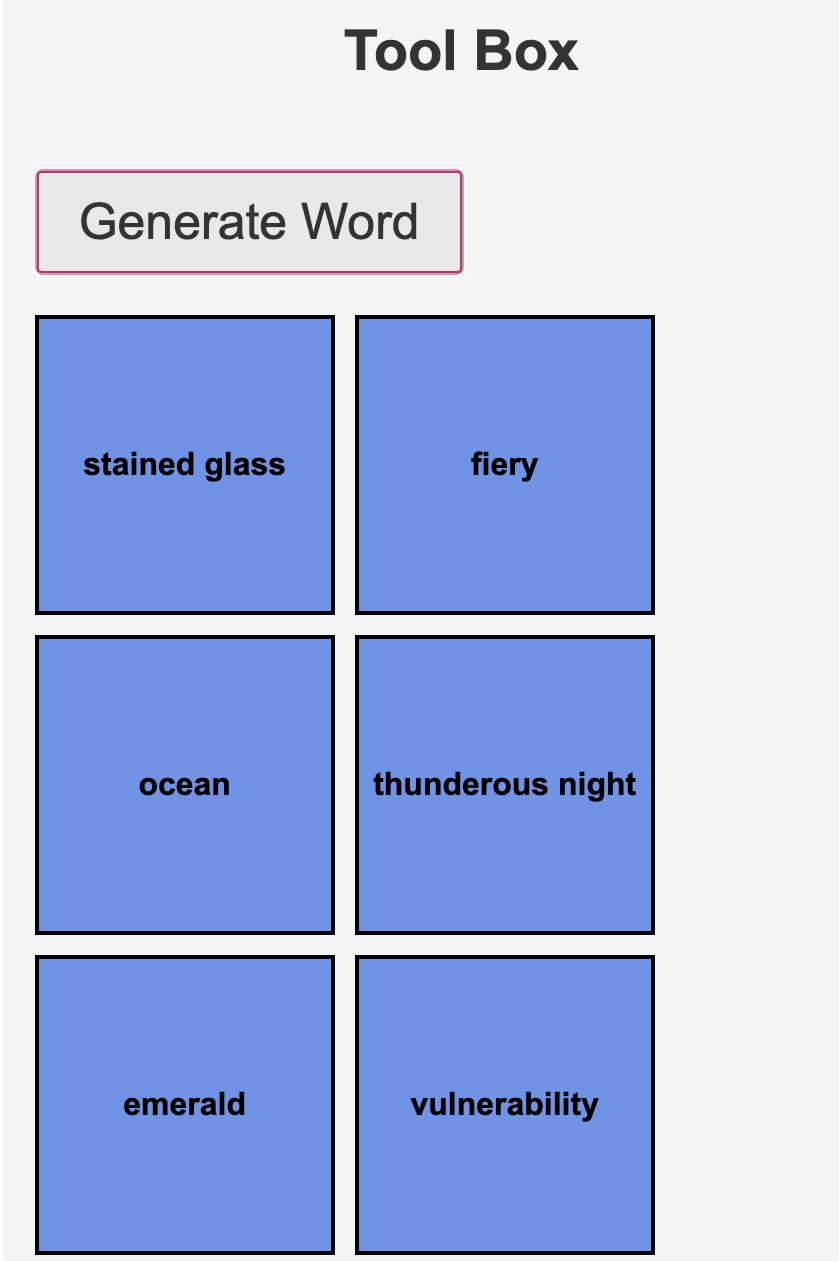
Click the "Generate Word" button to randomly produce your options. These words will appear in the sidebar under the following categories:
- Medium
- Adjective
- Noun
- Time
- Color
- Concept
Step 2: Creating Drop Zones
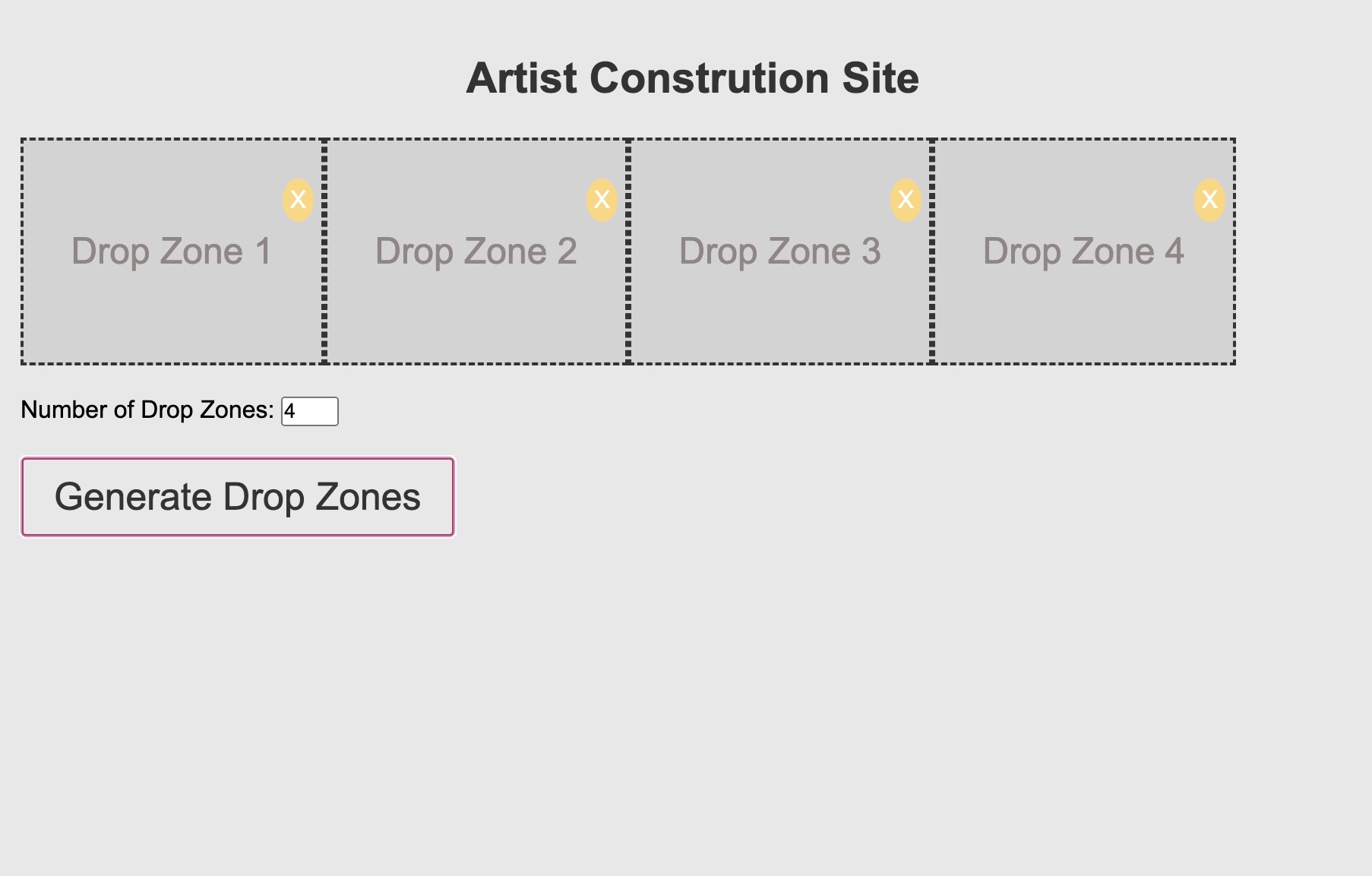
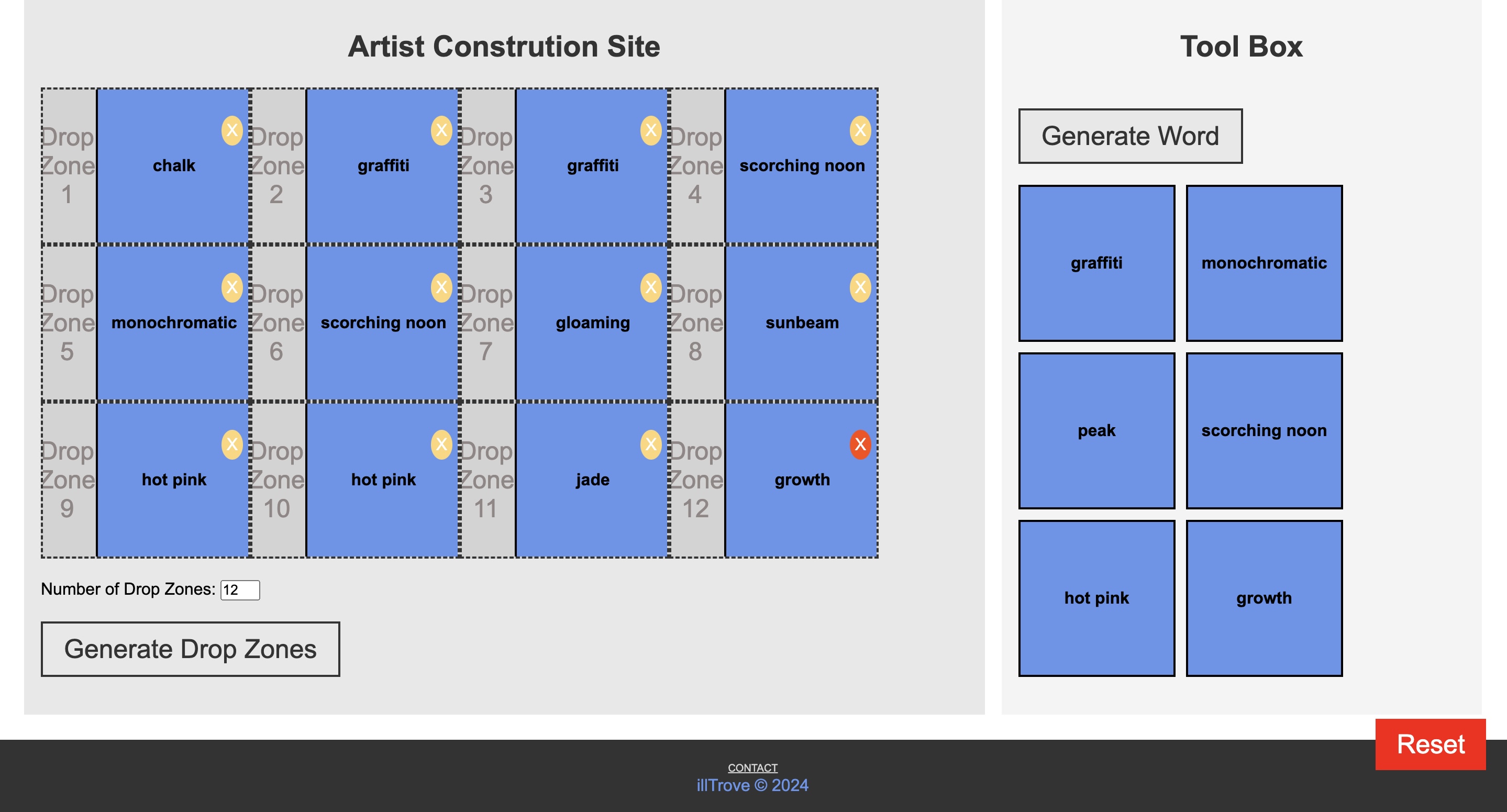
You can add up to twleve new drop zones by clicking the "Generate Drop Zones" button. Each drop zone allows you to place the draggable boxes into it. This helps you organize the selections visually. (Works best on laptop devices, but can be used on moblie).
Step 3: Interacting with Boxes
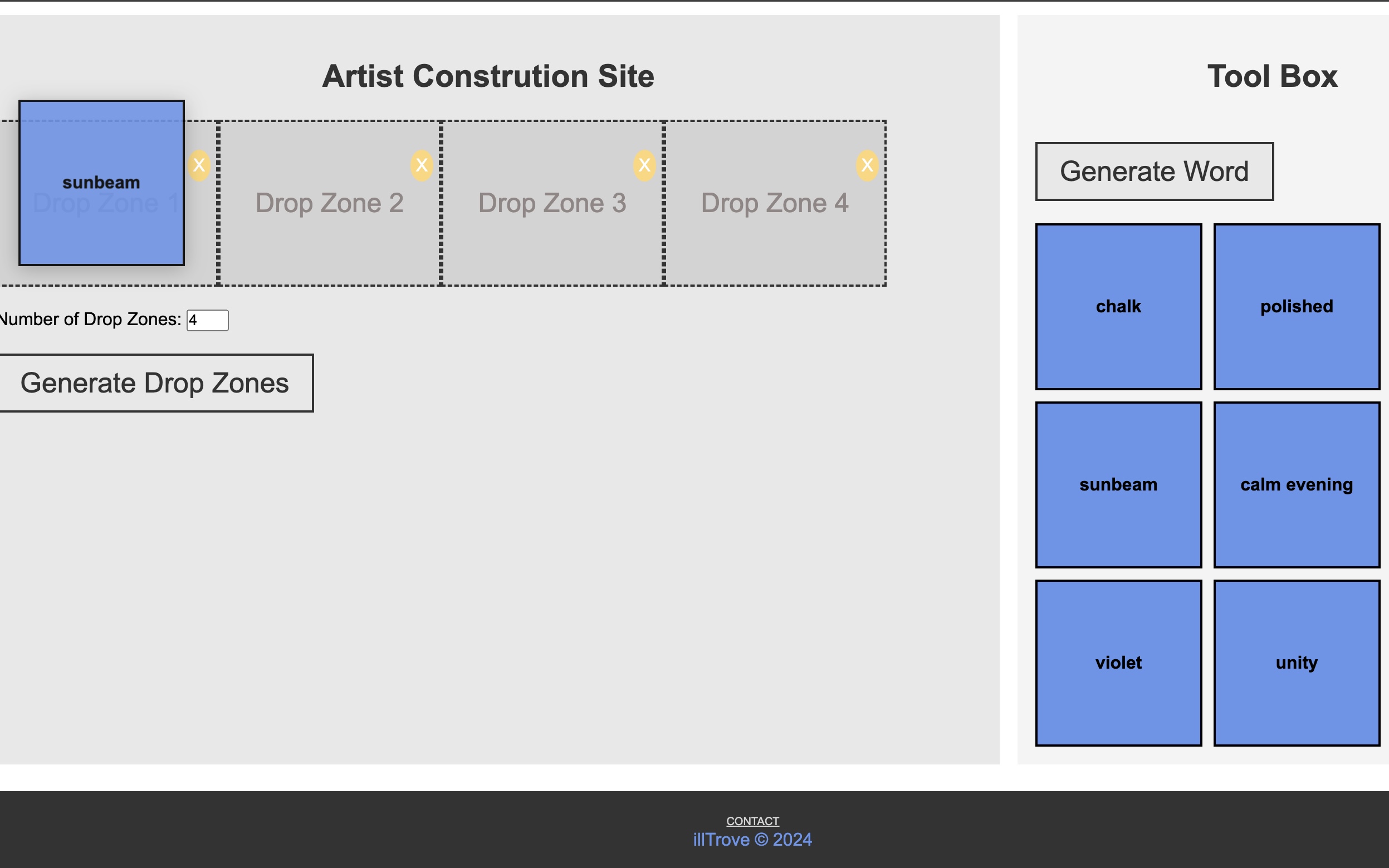
You can drag and drop your given words into different drop zones. Users can choose if they want to include a word from every grouping or use the same word more than once. To remove a drop zone, simply click the "X" button on the top right corner of the drop zone.
Step 4: Resetting the Page
If you'd like to start fresh, you can click the "Reset" button located at the bottom right corner. This will reload the page and clear any changes you've made.